
Prerequisites
Read these first if tee, pipes, or stdout vs a log file are new.
- tee(1) — copy stdin to a file and to stdout; the tool this post is about
- Pipeline (Unix) — connecting one command’s stdout to the next stdin
- I/O redirection (ABS) —
>/>>hide the live stream unless you alsotee
Why plain redirection hides the stream
Redirecting stdout with > is fine until you need both a log file and a live view. A long Gradle build, a flaky integration test, or a device log dump can run for minutes. If you write everything to a file, the terminal stays blank and you miss the first stack trace. If you skip the file, you lose the artifact you wanted to attach to a bug report.
The fix is not a custom script — it is three shell primitives you already have: pipe (|), redirection (<, >, >>), and tee.
Pipe — stdout becomes someone else’s stdin
A pipe connects the standard output of one command to the standard input of the next. The kernel creates the link; neither program knows the other’s name.
ls | grep "java"
Here ls writes filenames to stdout; grep reads that stream as stdin and prints only lines containing java. Pipes compose small tools into pipelines — filter, transform, count — without intermediate files.
That last point matters on CI: piping avoids disk I/O and race-prone temp files. It also means only stdout is wired by default. If you need stderr in the pipeline, merge it first:
./gradlew test 2>&1 | grep -i "failed"
Redirection — files and streams
Redirection moves stdin/stdout (or stderr) to a file instead of the terminal or keyboard.
Stdout to a file — overwrite:
ls > file_list.txt
Each run replaces the file from the beginning. Nothing prints to the screen.
Append instead of overwrite:
ls >> file_list.txt
Stdin from a file:
sort < file_list.txt
Both directions:
sort < file_list.txt > sorted_file_list.txt
Place redirection operators after options and arguments (grep -i error log.txt > errors.txt, not grep > errors.txt -i error log.txt on all shells). Order still trips people up in one-liners copied from Stack Overflow.
| Operator | Effect |
|---|---|
> |
Write stdout to file (truncate) |
>> |
Append stdout to file |
< |
Read stdin from file |
2> / 2>> |
Redirect stderr |
2>&1 |
Merge stderr into stdout |
Stderr is separate by default. A failing test that prints errors to stderr while stdout goes quiet will not land in cmd > log.txt unless you merge streams with 2>&1 before the redirect or pipe — easy to miss when the exit code is non-zero but the log file looks empty.
tee — copy the stream without losing the terminal
tee reads stdin and writes two copies: one to stdout (your terminal) and one to each file you name. That is the piece > alone cannot do.
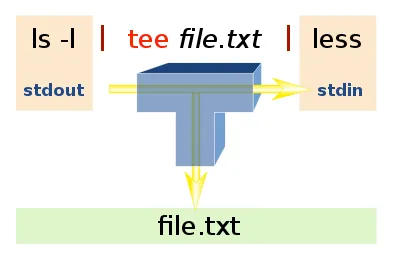
Figure 1. ls -l | tee file.txt | less — tee copies the stream to a file and still feeds the next command.
Chain tee with less when output is long: you watch one screen at a time (less streams stdin — it does not need the full file on disk first) while the same bytes land in a log:
./long_job.sh 2>&1 | tee debug.log | less
Build logs are the common case: thousands of lines, with the failure usually near the end.
Log and count in one pass:
ls -l | tee result.txt | wc
ls -l prints to stdout; tee writes result.txt and forwards the stream; wc counts lines/words/bytes on what it receives.
Log and still see everything on screen — no downstream command:
ls -l | tee result.txt
Append to an existing log:
./run_tests.sh 2>&1 | tee -a nightly.log
Use -a when you want a running journal, not a fresh truncate each time.
When to use which
| Goal | Pattern |
|---|---|
| Save output, do not show it | cmd > out.log |
| Show output, do not save | cmd (default) |
| Save and show | cmd \| tee out.log |
| Save, show, and pipe to another tool | cmd \| tee out.log \| tail -20 |
| Feed a file into a command | cmd < input.txt |
On Android dev machines, I reach for tee when capturing adb logcat or a long ./gradlew run: the file is there for the bug report, but I can still Ctrl-C the moment something interesting appears. For one-shot commands where I only need a file, > keeps the pipeline shorter.
Process substitution (tee >(grep ERROR >&2)) is the next step when you want to fork the stream more than once; for day-to-day logging, plain tee plus less or tail -f covers most Android and CI workflows.