
Prerequisites
Read these first if compileSdk / minSdk / targetSdk, API levels, or Play target API requirements are new.
- Configure your build — the three Gradle numbers this post treats as contracts
- Meet Google Play’s target API level — why a CI-green APK still fails Play upload
- uses-sdk — min / target / max as platform behavior, not just integers
- Android version history — API level ↔ platform version map
The release that broke on a newer phone
A build can pass CI, ship to internal testers, and still fail the moment someone installs it on a device running a newer Android version. Often the root cause is not a logic bug — it is a SDK version contract nobody updated: compileSdk left behind, targetSdk below Play’s requirement, or a behavior change that only activates when targetSdkVersion crosses a platform threshold.
Three numbers in build.gradle (or build.gradle.kts) control most of that story. They are easy to copy from a template and forget until Play Console rejects an upload or a permission dialog changes overnight.
Three versions, three jobs
Modern Gradle uses the android block:
android {
    compileSdk = 35

    defaultConfig {
        minSdk = 24
        targetSdk = 35
    }
}
Each field answers a different question.
compileSdk — what you compile against
compileSdk selects which Android SDK APIs and lint rules the compiler sees. It is not shipped to users; it does not appear on a device. Bump it to use new APIs and catch deprecations at build time.
Rule of thumb: keep compileSdk at or above your targetSdk. Compiling against an older SDK while targeting a newer one hides compile-time signals about behavior changes you have already signed up for at runtime.
minSdk — who can install
minSdk is the oldest Android version your app supports. Play uses it for device compatibility filtering. Raise it when you depend on APIs with no backward-compatible shim, or when the long tail of old versions is not worth the test matrix.
Check Android version distribution (updated periodically) before moving minSdk. The snapshot below is historical — Android version share from September 2022, useful as a shape, not as today’s numbers:
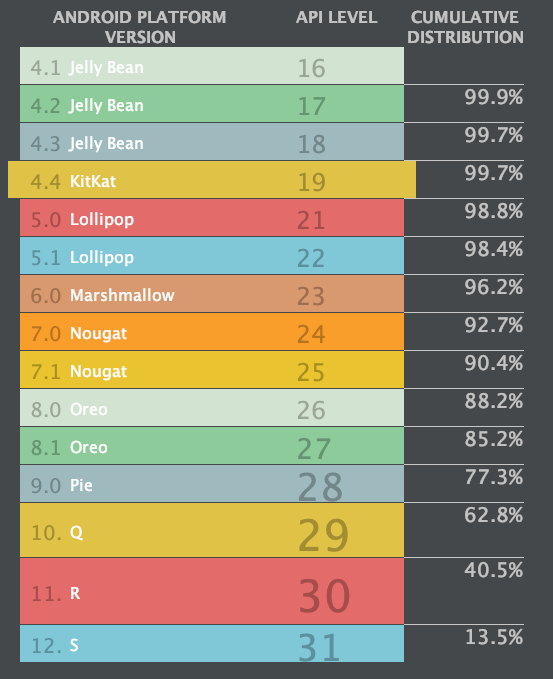
Figure 1. Android version distribution (Sep 2022). Treat as historical context; check current dashboards before changing minSdk.
targetSdk — what behavior you opt into
targetSdk tells the system which compatibility contract you tested against. When a device runs a newer OS than your target, Android may apply compat layers so legacy behavior persists. When you raise targetSdk, you opt into new platform rules: background limits, permission models, edge-to-edge defaults, notification channels, and more.
This is the field Play cares about. Shipping with a low targetSdk on a high OS version can mean stricter install rules, reduced discoverability, or behavior that diverges from what you tested in the lab.
Play target API requirements (keep this current)
Google Play enforces rolling target API minimums for new apps and updates. Deadlines move each year; verify against official policy before every major release:
Recent cycles require new submissions to target Android 15 (API 35) or higher, with existing apps facing discoverability cuts when they lag. Treat the Play deadline as a hard gate, not a nice-to-have.
Rule of thumb - start the targetSdk bump at least one sprint before the Play deadline so QA can exercise behavior changes on real devices, not just emulators.
Practical tips that survive template churn
Align compileSdk and targetSdk with the latest stable you can test
You do not have to adopt every new API feature when you bump versions. The point is to compile and run tests against the platform behavior you will ship. Many breakages show up only when targetSdk crosses a threshold documented in behavior changes per API level.
Raise minSdk deliberately, not accidentally
Transitive libraries sometimes force a higher minSdk than your product intends. After dependency upgrades, run ./gradlew :app:dependencies and read the merged manifest — a single SDK bump can drop support for devices you still care about.
AndroidX, not Support Library
Older posts tied compileSdk to Support Library versions. New projects use AndroidX with independent semver. Match library major versions to your tooling, not com.android.support:* artifacts (see the companion post on Android Support Library → AndroidX).
Release checklist (SDK slice)
Before tagging a production build:
- Read the delta — Android release notes for every API level between old and new
targetSdk - Bump compileSdk + targetSdk together in a dedicated PR; keep feature work separate when possible
- Run on physical devices — at least one current Pixel and one OEM skin on the newest OS you target
- Exercise permissions — camera, notifications, background location, exact alarms: many re-root in runtime permission or
targetSdkgates - Scan third-party SDKs — ad, analytics, and payment SDKs often lag; confirm their release notes support your target API
- Use the SDK Upgrade Assistant in Android Studio for mechanical migrations and lint guidance
- Verify Play Console pre-launch reports after uploading an internal track build
What goes wrong when targetSdk lags
Symptoms teams misattribute to “random OEM bugs”:
- Notification channels ignored or posting failures on Android 13+
- Background work killed after targeting modern background execution limits
- File access breaks when scoped storage rules apply to your target level
- Edge-to-edge / inset bugs when targeting recent versions without updating theme and WindowInsets handling
- Install blocked on new devices when Play or the OS enforces minimum target API for sideloading/ store listing
The fix is rarely a one-line manifest change. It is reading the behavior-change doc for each skipped API level and testing the user flows that touch storage, alarms, FCM, WebView, and permissions.
References
- Configure your build — SDK versions
- Android version distribution dashboards
- Behavior changes for all apps — example of targetSdk-gated platform shifts (read the level you skipped)
- Request runtime permissions — a frequent “it broke on a newer phone” class tied to targetSdk